
As some renovation is going on in our home, I thought it a good time to address some of the foundations of my AI landscape as well — make some solid choices and changes on that front too.
Over the past year or so, I've been rapidly accelerating into AI, finding ways it can support my workflow so I can genuinely 10x the stuff I get done. But there's a line I pay attention to: I need to be comfortable with what it does, what it can't do, and what I won't have it do for me. That balance matters. If you're going to build on top of something this powerful, you'd better trust the foundation.
The thing is, that rapid acceleration left me with a slightly patchy setup. A bit of OpenAI here, some Anthropic there, different models tuned differently across different systems. And if there's one thing that breaks both my workflow and my patience, it's having to tune AI multiple times across multiple platforms just to get consistent results. That's not a workflow — that's a second job nobody asked for.
So I made the call: get the scaffolding right. In the first part of this article I'll walk through the migration process — the do's, the don'ts, and the practical steps. In the second part, I'll explain how I restructured the whole setup — maybe as a useful pattern for others considering the same move.
But something else happened too, right at the same time.
The "Why" — It Starts With Principles
OpenAI Signed Its Principles Away
I was already considering my AI setup when OpenAI made the decision for me. They aligned themselves with the current US administration — an administration that is so adrift from what I believe to be fair and just principles that it genuinely pains me to watch.
Let me be clear: this is not about America or Americans. It's a great country and I absolutely love talking to Americans. I hope for some well-deserved change that can turn things around. But as it stands, OpenAI is now positioned to fuel the ambitions of a political system I want no part in supporting. There's no reason for me to move money in that direction. My spend and my data are going somewhere else.
Anthropic was founded specifically because of concerns about AI safety and responsible development. Their focus on Constitutional AI, their research-first culture, and their consistent messaging aren't marketing afterthoughts — they're the reason the company exists. That difference in DNA matters.
And to be crystal clear - Anthropic can and will probably be used in many ways that I don't align with either. But OpenAI's move was too big to ignore for me.
Quality: The Part That Seals the Deal
Ethics got me looking. Quality made me stay.
After running extensive comparisons across real-world tasks — not cherry-picked benchmarks, but the messy, nuanced work that actually makes up a day — Claude consistently delivered output that required less editing, followed instructions more faithfully, and handled complex reasoning with more coherence.
Specifically, I noticed:
- Instruction adherence: Claude respects what you actually asked for. With GPT models, I found myself increasingly battling a tendency to over-embellish, ignore constraints, or drift from the brief. Claude reads the room.
- Consistency: The same prompt, run multiple times, produces reliably similar quality. With OpenAI's models, particularly after certain updates, output quality could swing noticeably between runs — and between model versions.
- Nuance in longer outputs: For agents that need to maintain context over extended interactions, and for distilled knowledge workflows where precision matters, Claude holds the thread better. It doesn't lose the plot halfway through a complex task.
- Problem-solving under pressure: GPT models have a tendency to overcomplicate things the moment they hit a small snag — especially with coding or CLI tasks. Instead of stepping back and reasoning ("if X and Y happened, it's probably Z, let's pivot"), they barrel ahead trying to solve X or Y in the most convoluted way possible, writing elaborate scripts for what should be a one-liner. Claude is better at that feedback loop: evaluating what just went wrong, adjusting course, and keeping it simple. The difference in time wasted is dramatic — GPT burns through your patience like matches on a bonfire.
- Tone control: This one's personal, but important. Claude doesn't default to that overly enthusiastic, slightly hollow tone that GPT models often fall into. You know the one. Everything is "great question!" and "absolutely!" before giving you an answer drenched in unnecessary preamble. Claude just... answers.
The Track Record Factor
I didn't make this switch on a whim. I've logged serious hours with both platforms. I've pushed both to their limits on agent design, content generation, research synthesis, and knowledge base construction. The comparison isn't theoretical — it's lived experience, measured in hours saved and outputs that didn't need a second pass.
Part One: The Migration — Do's, Don'ts, and Practical Steps
Switching AI providers sounds daunting, but it's more manageable than you'd think if you approach it methodically. Here's what the process looked like.
Step 1: Document What You Actually Have
Before you migrate anything, make sure your persistent and important workflows are solidly documented. This might sound obvious, but most people skip it — and then realise halfway through a migration that half their knowledge lives in chat history they can no longer access.
I mainly use CLI tools (Codex, Claude Code), so documentation is second nature there — these tools handle context and memory completely differently from the chat interfaces. But even if you've been living in ChatGPT's chat window, this step is critical.
My recommendation: write everything out to .md files. Markdown is lightweight, universal, and an excellent springboard to other formats. Each important workflow, agent setup, or knowledge domain gets its own file — a single source of truth.
The idea is simple: go through your more lengthy and productive chats — the ones where you actually built something, solved something, or made decisions worth keeping — and use the following prompt to distil that knowledge into a structured document before you leave the platform. We'll still get all that data out another way in Step 2, but this is your safeguard. If the export fails or the format is unusable, you've already captured the important stuff in a clean, portable format.
Here's the prompt:
You will act as an expert documentalist documenting [topic] which I have
addressed with this tool in one or more chats. Write an extensive document
in .md style that serves as a single source for this knowledge.

The document should include:
- A brief summary/overview at the top describing the scope and purpose
- The final way of work as it stands today
- Itemized design choices made along the way, with reasoning
- A FAQ/Known Errors section listing questions and errors we encountered,
  with common fixes and the resulting choices
- A 'Links' section with external references
- A version date at the top (use today's date)

Do NOT copy any credential information but reference this data by
placeholder (e.g., [API_KEY], [DB_PASSWORD]). Use clear, descriptive
placeholder names so both humans and AI tools can identify what belongs
where.

Use tables to structure patterned information where applicable, such as:
configuration (parameter, value), Q&A (id, question, answer, reference),
and links (title, url, description). This keeps the .md clean and
scannable.

Make sure to optimize the file for ingestion by another AI tool — use
clear section headers, avoid ambiguity, and include enough context that
a new AI session could pick this up cold and understand the full picture.
Keep the file humanly readable as well.

Name the resulting file: [topic]-export-[YYYYMMDD].md (add a sequence
number if multiple exports exist for the same topic and date, e.g.,
[topic]-export-[YYYYMMDD]-2.md).

IMPORTANT: Output the entire document as a single markdown code block
(wrapped in triple backticks). Do NOT split the output across multiple
code blocks. Everything — from the first heading to the last line —
must be inside one continuous code block so it can be copied in one go.
Avoid nested code fences inside the document — use inline code formatting
for commands, paths, and references instead.

Also provide the document as a downloadable file using the naming
convention above ([topic]-export-[YYYYMMDD].md).
A few things worth noting about this prompt:
- Single code block output means you can copy the result straight into a
.mdfile — one action, one file, done. - No secrets get exposed. Credentials and sensitive configuration are referenced by placeholder only, so the resulting document is safe to store, share, or feed into other tools without risk.
- Patterned information in tables (configuration, Q&A, links) makes the document far more dependable on ingestion by another AI tool. Structured data in a table is unambiguous — there's no guessing where one field ends and another begins. It also makes the document more complete, because the table format forces the AI to fill in every column rather than vaguely summarising.
This gives you documentation that works for both humans and AI tools — portable, version-controllable, and not locked into any provider's ecosystem.
Side note: even if you're not planning a migration, this is a habit worth building. If you mainly interact with AI through the web or chat UI, your knowledge lives inside that provider's platform — and you have no control over what happens to it. Running this prompt on your important chats and saving the output as .md files gives you a stable, file-based export of your work that you actually own. Don't wait until you need to move to find out you can't take your stuff with you.
Step 2: Get Your Data Out (The Real Way)
There are suggestions — even from Anthropic itself — on how to use a prompt to get important information out of other AI tools. Claude offers this under Account > Settings > Capabilities > Import memory from other providers. I'd advise against relying on this.
For context: when I tried it, I got a 64-line output. Sixty-four lines. That's not your data — that's what the AI tool chose to store in its memory out of all your interactions. It may or may not have done a good job at that, but it in no way equals getting your actual data out of OpenAI.
For comparison, my proper data export — the one we're about to do — resulted in a 1.1 GB export of text files and stored interactions. That's the difference between a Post-it note and a filing cabinet.
I actually tried requesting the export through ChatGPT's own chat UI first (Settings > Data controls > Export data). I got the confirmation email from OpenAI, but it never processed properly. So here's what actually works:
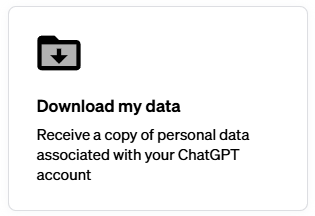
Step 2a) Go to https://privacy.openai.com/, log in, and click "Make a privacy request", then click "Download My Data". This will register your request and you'll receive a confirmation email that the process has started.
 |  |
A heads-up on timing: for me this took almost 24 hours to complete, but that probably scales with how heavily you've used the platform. If you're a lighter user, expect it to be much faster. Also note that once you get the notification that your download is ready, the link expires in about 24 hours — so don't sit on it.
Step 2b) Download the archive as soon as you get that email. This export covers all of your data — every conversation, every piece of media produced, voice conversation transcripts, the lot.
Step 2c) Unpack it somewhere you can easily find and work with it. Don't worry too much about the contents and their structure right now. It's humanly readable to an extent, but if you're a heavy user of OpenAI's tools it'll be far too much to sift through manually. That's fine — we'll put our new model to work with this dataset.
Here's what you'll find inside the export:
| Item | Description |
|---|---|
| conversations-*.json | All ChatGPT conversations in structured JSON — messages, roles, timestamps, model used |
| chat.html | Full conversation history rendered as a single browsable HTML page |
| export_manifest.json | Index linking all exported items and their file references |
| user.json | Your OpenAI account profile data |
| user_settings.json | ChatGPT preferences and configuration |
| shared_conversations.json | Conversations you shared via public links |
| Top-level images | Files you uploaded to or received from ChatGPT during conversations |
| UUID folders | Per-conversation attachment bundles — screenshots, photos, audio messages |
| dalle-generations/ | All images generated by DALL-E |
| .md / .pdf files | Documents you uploaded during conversations |
Step 3: Process Your Export With Purpose
Sifting through a 1+ GB data dump manually isn't realistic. So I built a set of Python scripts that do the heavy lifting: they parse your OpenAI export, find and sort your conversations, categorise them by topic, and then run through each category to distil the actual knowledge — facts, decisions, learnings — into structured output.
I've published these scripts as a public repository: https://github.com/VinceVerbon/OpenAI-Migration
To get a copy on your system, you'll need Git installed and then clone the repo. If you're new to Git or need a refresher, GitHub has a solid quickstart guide: Getting started with Git. Once you're set up, it's a single command:
git clone https://github.com/VinceVerbon/OpenAI-MigrationThe repo's README walks you through the rest — configuration, pointing it at your unpacked export, and running the scripts.
Before you run anything, though — verify the scripts are safe. You're about to point code at a full export of your AI history, so trust but verify. Open your AI tool of choice, point it at the cloned repo directory, and run the following prompt:
You are a security auditor. I have cloned a repository of Python scripts
that will process my personal data export from OpenAI. Before I run
anything, I need you to verify these scripts are safe and trustworthy.

Scan every file in this directory and its subdirectories. For each file,
check the following:

1. No hardcoded URLs, endpoints, or IP addresses that send data anywhere
   other than local file system and the documented API (Anthropic)
2. No network calls, webhooks, or exfiltration patterns (requests, urllib,
   httplib, socket, smtp, or similar) beyond what is explicitly needed
   for the documented Anthropic API usage
3. No obfuscated, encoded, or suspicious code (base64 payloads, exec(),
   eval(), compile(), __import__() used in unusual ways)
4. No file operations outside the working directory or export directory
   (no writes to system paths, no home directory access beyond config)
5. No credential harvesting — scripts should never store, copy, or
   transmit API keys, tokens, or passwords beyond local config files
6. No hidden or undocumented dependencies that could introduce supply
   chain risk
7. All scripts do what the README says they do — no unexplained
   functionality

Output format:
- Start with a single verdict line: "THE SCRIPTS ARE OK" or "NOT OK"
- Then list each check below as:
  - [check name]: checked. OK
  - or: [check name]: FAILED — [brief reason]

Be thorough. I would rather get a false alarm than miss something real.
If anything comes back as FAILED, read the explanation before proceeding. This prompt is deliberately transparent — you can read every check yourself and understand exactly what's being verified. No black-box trust required.
Step 4: The Pipeline — What It Does and Why
Now for the part where your new AI earns its keep. The pipeline takes your raw export and turns it into structured, categorised knowledge files — ready to load into any AI assistant as persistent context. It labels, discovers, categorises, triages, extracts, distils, and links — seven steps, and I want to walk through them because the logic matters. This isn't a black box — every step has a clear reason for existing.
Phase 1 — Topic Labeling (AI-assisted)
ChatGPT auto-generates conversation titles from the first message and never updates them — so a chat that starts with "quick question about Docker" but turns into a deep dive on Traefik reverse proxies is still titled "quick question about Docker." The pipeline fixes this by extracting conversation excerpts and having Claude Code generate a proper 3-7 word topic label per conversation. This single step dramatically improves everything that follows.
Phase 2 — Discovery & Clustering
Using those topic labels, the pipeline clusters your conversations by shared vocabulary. Conversations about docker compose traefik end up together; conversations about excel pivot formula cluster separately. No predefined categories — everything is discovered from your data. Someone who chats about cars gets motor-turbo; someone into electronics gets esp32-board. The clustering also produces a direct membership map: every conversation in a cluster is authoritatively assigned to that category with ~99.5% accuracy.
Phase 3 — Three-Tier Categorisation
Not every conversation falls neatly into a cluster. For the rest, the pipeline uses a layered approach:
- Tier 1 — Cluster membership: The direct mapping from Phase 2. Authoritative, never overridden by later steps.
- Tier 2 — Abstract matching: For conversations outside any cluster, keywords are matched against their AI-generated topic label. Since labels are short and precise, even a single strong keyword hit is reliable here.
- Tier 3 — Raw text matching: For conversations without a usable label, keywords are matched against actual conversation content. This is noisier — the pipeline requires 4+ distinct keyword hits to reduce false positives.
After that, a statistical classifier (TF-IDF profiles built from already-categorised items) takes a crack at whatever's left, reading progressively deeper into conversations until it's confident or gives up. The classifier has three gates it must pass — relative margin, absolute score, and keyword anchor — to prevent garbage assignments.
To give you a sense of how this plays out in practice: cluster membership alone (Tier 1) covers 65-70% of conversations at ~99.5% accuracy. Adding all three tiers pushes coverage to 75-80% at ~95% overall accuracy. Expect about 15-20% of conversations to remain uncategorised — these are typically genuine one-offs that don't cluster with anything. In my run of 1,308 conversations, the pipeline produced knowledge files covering the vast majority of meaningful content.
Phase 4 — Triage
Not everything is worth keeping. The pipeline automatically flags conversations that are too short to contain real knowledge and marks outdated generic how-to questions that current AI already knows better. It also generates a human-readable checklist and a category selection file — both optional review points. You can skim the checklist if you want (15-30 minutes), or uncheck categories you don't want distilled, but neither step is required to continue. The automation runs straight through if you don't intervene.
Phase 5 — Extraction (with source traceability)
For each category, the valuable content gets extracted into structured JSON files: the key messages that establish the topic, reveal your decisions, and contain actual knowledge. Full conversations are noisy — greetings, corrections, tangents. The extraction strips that away and packages what matters. Crucially, each extracted conversation carries its original ID and a reference to which backup file it came from — so you can always trace any piece of distilled knowledge back to the full original conversation in your local export.
Phase 6 — Distillation & Source Linking (AI-assisted)
This is where Claude earns its keep again. It reads each category extract, deduplicates across conversations that covered the same ground, flags contradictions, and produces one clean knowledge file per topic — learning-[topic]-[date].md. Facts, decisions, tools, preferences, patterns — all structured, all in the language you choose. Translation happens here too, not earlier, so the extraction stays faithful to the original.
After distillation, the pipeline automatically appends a sources section to each knowledge file — a table linking every piece of knowledge back to its source conversation in your local backup, with conversation title, date, message count, backup file path, and conversation ID. Full traceability, no dependency on ChatGPT being online or your account still existing.
Post-Distillation — Reorganisation (optional)
The categorisation pipeline hits ~95% accuracy, but that means ~5% of conversations end up in the wrong category. After distillation, this shows up as sections that don't quite belong in their file — a rosemary cooking tip in a Linux administration file, a Roblox display fix in an iOS troubleshooting file. The repo includes a reorganisation script that moves misplaced sections to their correct knowledge file. In my run, it identified and moved 130 sections across 121 files. You can run it with --dry-run first to see what it plans to do before it touches anything. Fair warning: this step uses parallel AI agents to review all knowledge files in depth, so it has a higher token cost than the rest of the pipeline. Only worth it if topical consistency matters to you — and for most users it will.
Language handling is built into the pipeline from end to end, and this is particularly relevant to me. My content is a proper mix: all professional, technical, and coding conversations are in English, while mundane personal stuff — and quite a bit of kids-related things — is in Dutch. The pipeline detects the language of each conversation automatically and gives you four strategies to choose from:
| Strategy | What it does |
|---|---|
unified | Auto-detects the dominant language across your data and translates everything to it |
preserve | Keeps each knowledge file in whatever language the conversations were originally in |
translate | Translates everything to a specific target language of your choice |
multilingual | Includes both the original and translated content side by side |
Translation happens at the distillation phase — not earlier — so the extraction stays faithful to the original conversation content. You set the strategy in your seed config and the pipeline handles the rest.
You can also just hard-code English as output, which is what most people will want for professional knowledge. Or, if you're feeling adventurous, translate everything to French. I must say it both improves my holiday speaking skills — I will be the one fluently ordering that morning breakfast in French while you watch enviously — and it makes my knowledge sound so much more romantic.
The whole thing runs on Python 3.10+ stdlib only — no external dependencies, no API keys needed for the automated steps. The two AI-assisted phases (topic labeling and distillation) use Claude Code, and when run from a Claude Code session the entire pipeline is end-to-end automated — Claude Code both executes the Python scripts and performs the AI inference steps without manual intervention.
One important thing to keep in mind: even with ~95% accuracy and all these guardrails, the pipeline won't be perfect. Some conversations will end up in the wrong category, and some distilled knowledge will be incomplete or miss nuance that only the full original conversation contains. That's exactly why the source linking matters — every knowledge file links back to the exact conversations and backup files it was distilled from. If something looks off, or if you want to go deeper on a topic, you can point Claude at that sources table and tell it to fetch the full original conversations, combine them into a source document, and use that as a complete context starting point to refine and expand the knowledge. The pipeline gets you 95% of the way there; the source traceability makes it easy to close that last 5%.
For the full technical detail — the three-tier scoring thresholds, the classifier's gate system, configuration options, the exact data flow — check the docs/ folder in the repository. The README.md in there covers everything.
Step 5: Let Claude Code Do the Work
The setup assumes you'll use Claude Code (Anthropic's CLI tool) to drive the pipeline. Point Claude Code at the cloned repo directory and give it this prompt to get started:
Read the README.md in this directory first. Then read docs/README.md
for the full pipeline documentation. Once you understand the structure,
walk me through setup and run the pipeline against my OpenAI export.
My export is unpacked at: [PATH_TO_YOUR_EXPORT]
Claude Code will read the documentation, understand both the structure and the prerequisites of the script chain, and execute accordingly — setting up your seed config, running discovery, processing the pipeline steps, and guiding you through distillation. You don't need to memorise the steps above; that prompt is all you need to kick it off.
A note on network paths: If your export lives on a network drive (NAS, file server, mapped drive letter), use the full UNC path (e.g., \\server\share\OpenAI-Export) instead of a mapped drive letter (e.g., Z:\OpenAI-Export). Mapped drive letters don't always resolve in CLI environments like Claude Code. The pipeline will warn you if it detects a mapped network drive.
Results and Lessons from the Migration
Most of the lessons I learned along the way have been incorporated directly into the pipeline's logic — they're not separate advice, they're baked into how the scripts work.
For instance: OpenAI generates a conversation title very early on, often from the first message, and never updates it. So a chat that starts as "quick Docker question" but evolves into a two-hour deep dive on Traefik reverse proxies is still titled "quick Docker question." Inferring topic from title alone won't cut it — the pipeline addresses this with AI-generated topic labels that are based on actual conversation content, not just the name OpenAI gave it.
There's actually some pretty satisfying logic in how the pipeline achieves good matching without running your full conversations through the AI engine — which would blow up your token usage. The three-tier categorisation, the TF-IDF classifier with its three gates, the progressive message reading (start with 3 messages, go deeper only if needed) — all of it is designed to get high accuracy while keeping costs manageable. You're not paying to process every word of every conversation; the pipeline reads just enough to be confident.
One thing I did notice: distillation will of course even out some deep knowledge. When you condense dozens of conversations into a single knowledge file, nuance gets compressed. Specific edge cases, debugging sessions, the full reasoning behind a decision — some of that gets lost in abstraction. This isn't unexpected, and it's actually one of the reasons I believe it's a pretty bad idea to leave your knowledge management to whatever automatic memory scheme your AI provider happens to run. You have no control over what gets stored, what gets dropped, and how it's structured. Make it explicit instead. Document in files and manuals. Keep it in a structure you own and understand. That's a far better practice than trusting a black box to remember what matters.
This is also why I added the source linkback table to every knowledge file. Each file has a table at the bottom that maps every piece of distilled knowledge back to its original conversation in your local export. If you need the full depth on something, you can point Claude at that table and tell it to fetch and summarise the full original conversations with less abstraction. The distilled files get you up to speed fast; the source links let you go as deep as you need to.
Part Two: The Scaffold — Rebuilding the AI Setup
With the migration done and the knowledge safely extracted, it was time to address the real problem: the patchy setup I mentioned at the start. Having all your knowledge in one place doesn't help much if your AI configuration is still scattered across machines, user profiles, and different tools with no shared structure.
Here's how I rebuilt it — and how you can set up something similar.
The Core Idea: One Repo, Every Machine
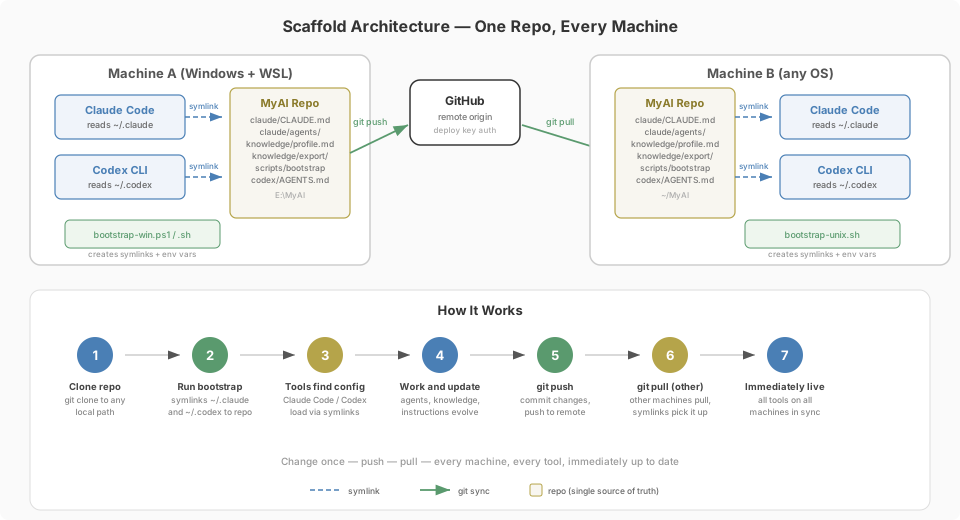
The principle is simple: put all your AI configuration — global instructions, agents, memory, knowledge files, scripts — into a single Git repository. Then use symlinks to connect it to wherever your AI tools expect their config to live.
For Claude Code, that's ~/.claude. For Codex (OpenAI's CLI), it's ~/.codex. Instead of each tool having its own isolated configuration buried in a user profile somewhere, they both point to the same repo. You change something once, push it, and every machine picks it up.
The structure looks something like this:
MyAI/
├── claude/
│   ├── CLAUDE.md              # Global instructions for Claude Code
│   ├── agents/                # Specialist agent definitions
│   ├── commands/              # Custom slash commands
│   └── projects/              # Per-project memory and context
├── codex/
│   ├── AGENTS.md              # Global instructions for Codex
│   └── memory/                # Persistent memory files
├── knowledge/
│   ├── profile.md             # Your distilled user profile
│   └── openai-export/         # Knowledge files from Part One
├── scripts/
│   ├── bootstrap-win.ps1      # Windows bootstrap
│   └── bootstrap-unix.sh      # WSL/Linux bootstrap
├── docs/                      # Lessons learned, patterns, references
├── INSTRUCTION.md             # Jump point for new machines
└── README.md
The key insight is that none of this lives in user profiles. User profile paths (C:\Users\yourname\, ~/.claude/projects/) are machine- and account-specific. They don't survive system changes, don't sync across devices, and aren't backed up unless you explicitly set that up. The repo is the single source of truth — symlinks just make the tools find it.
Bootstrap: One Command Setup
When you set up a new machine — or reinstall, or set up WSL alongside your Windows environment — you don't want to spend an hour re-configuring your AI tools. The bootstrap scripts handle this:
Windows (PowerShell):
.\scripts\bootstrap-win.ps1WSL/Linux (bash):
bash ./scripts/bootstrap-unix.shWhat these do:
- Create symlinks from
~/.claudeand~/.codexto the repo'sclaude/andcodex/directories - Back up any existing configuration that's already there (timestamped, nothing gets lost)
- Detect the current user's screenshot folder and configure it as an environment variable
That last point deserves some context. I seldom use the web UI for my AI work. I prefer to package documentation and knowledge into a file-based structure that lives in the Git repo of each project — including the project-specific AI settings and memory. This is also the basis for working on VSCode projects, where your AI context, project instructions, and knowledge files sit right alongside your code — which, incidentally, is also a well-advised continuous deployment and DevOps practice: check in your documentation with your code. It makes it much easier to work with larger dataset manipulations that you want processed locally rather than pasting into a chat window, and it means your AI setup travels with the project — not with a browser session.
One drawback of CLI tools like Claude Code (and OpenAI's Codex) is that while they allow drag-and-drop of images, you can't copy-paste screenshots from memory the way you can in a chat UI. So when you make a screenshot, it lands in your OS screenshot directory — and that directory path differs between Windows users, OneDrive configurations, and languages (Dutch Windows uses "Afbeeldingen" instead of "Pictures"). The bootstrap resolves this once per machine and sets it as an environment variable, so your global AI instructions can reference the screenshot folder generically without hardcoding any user-specific paths. One fix, every system, every user account.
After bootstrap, your AI tools immediately have access to your full configuration, knowledge base, agents, and memory — on any machine you clone the repo to.
Why This Matters for Windows + WSL Users
If you're on Windows and also use WSL (which you probably do if you run Claude Code), this setup is particularly valuable. Without it, your Windows Claude Code config and your WSL Claude Code config are completely separate — different home directories, different .claude folders, different instructions. You end up maintaining two copies of everything, which is exactly the kind of duplication that made me want to consolidate in the first place.
With the bootstrap approach, both environments symlink to the same repo. Your Windows PowerShell bootstrap creates junctions to the repo on your Windows drive. Your WSL bash bootstrap creates symlinks through the /mnt/ path to the same physical files. One repo, both environments, always in sync.
If you run into issues getting the WSL symlink to work with your specific setup, feel free to reach out — I'm happy to help troubleshoot.
Global Instructions: Teaching Your AI How You Work
The CLAUDE.md at the repo root is your global orchestrator file. This is where you define how Claude Code behaves across all projects and sessions — your core principles, your conventions, your rules.
Some things I've found worth putting here:
- Persistent storage rules. Where should the AI write things that need to survive between sessions? Not in user profiles — in the repo itself, under
docs/orknowledge/. This prevents the "where did that lesson go?" problem. - User shorthand. If you type
ssa hundred times a day meaning "screenshot," teach your AI that once globally rather than explaining it every session.
Project-level CLAUDE.md files still live with their projects and are additive — the global file covers what applies everywhere.
Specialist Agents
For tasks that require specific domain expertise, I set up dedicated agent profiles. These are markdown files in claude/agents/ that define a specialist's role, expertise, and constraints. When Claude Code encounters a task that matches, it can delegate to the right specialist rather than trying to be a generalist at everything.
Think infrastructure-specific roles (a Docker specialist, a Linux sysadmin), domain-specific ones (a CMS or webhosting specialist), or even a complete team for a specific project — I built a set of camper specialists that helped me find, evaluate, and eventually purchase my camper. The idea isn't to build an army of agents — it's to have the right expert on call for domains where generic Claude would need too much hand-holding.
Knowledge Files as Persistent Context
Remember those knowledge files from Part One? This is where they land. The knowledge/ directory in the repo holds your distilled user profile and all topic-specific knowledge files from the pipeline. When Claude Code starts a session, it can load your profile for general context and pull in the relevant topic files for whatever you're working on.
The profile file is a structured document covering your identity, expertise, tools, preferences, and working style — all distilled from your actual conversation history. It's not a prompt you wrote about yourself; it's what the AI learned about you from thousands of interactions.
Loading everything at once would be wasteful and noisy. The better approach: always load the profile, then selectively load topic knowledge relevant to the current task. Docker infrastructure? Load the infrastructure knowledge. Writing an article? Load the writing and business knowledge. This keeps context focused and token-efficient.
There's a broader point here about why file-based knowledge beats provider-managed memory. Your AI's behaviour is strongly served by structure in its guidance and guardrails. If you leave it to stacked and probably somewhat inconsistent patterns from your day-to-day usage — a bit of memory here, a correction there, a preference mentioned three months ago that may or may not have stuck — you'll find your AI starts to drift in unforeseen ways from what you actually want and expect. Explicit, structured files that you can read, review, and version-control keep the AI grounded. You know exactly what it knows, because you wrote it down.
Version Control Is Your Backup
Because the whole thing is a Git repo, every change is tracked, every version is recoverable, and pushing to GitHub (or any remote) is your backup. I use a deploy key for the repo — no password prompts, just push and it's safe.
This also means you get a timeline of how your AI configuration evolved. When you add a new agent, refine your global instructions, or update a knowledge file after a reorganisation, it's all in the commit history. If something breaks, you can roll back.
What You'll Need
Setting up a scaffold like this doesn't require anything exotic:
- Git — for version control and syncing
- Claude Code — Anthropic's CLI tool (your primary AI interface)
- A repo host — GitHub, GitLab, whatever you prefer
- Optionally: Codex CLI — if you also use OpenAI's CLI tools alongside Claude
The bootstrap scripts are straightforward PowerShell and Bash — no dependencies beyond what ships with Windows and any Linux distribution. The whole setup is designed to work with Python 3.10+ stdlib for any automation, same philosophy as the migration pipeline.
The Result
After the scaffold is in place, your AI setup becomes something you can describe in one sentence: "Clone the repo, run bootstrap, you're done." Every machine gets the same instructions, the same agents, the same knowledge base. Updates propagate by pulling. Configuration lives in version-controlled markdown files you can read, edit, and understand without any special tools.
The patchy setup I started with — different models, different tuning, different configurations scattered across platforms — is gone. In its place is something I can maintain, extend, and trust. That's what good scaffolding does.
Should You Switch?
If you've been quietly frustrated with OpenAI's direction, or if you've noticed the quality of your outputs plateauing despite better models being released, it's worth running your own comparison. Don't take my word for it — take your five most important workflows, run them through Claude, and see what comes back.
The migration is more structured than it looks from the outside. Document first, export properly, let the pipeline do the heavy lifting, then build a scaffold you can actually maintain. It's work, but it's work that pays off immediately in consistency and control.
For me, the combination of a company I can respect and a model that respects my instructions was enough. Your mileage may vary, but I suspect if you're reading this, you've already felt the pull.
If you want to talk through any of it — the migration, the bootstrap setup, the WSL symlink dance, or just comparing notes on the switch — feel free to reach out. I'm at vincent@syquens.com or find me on vinceverbon.com.
Vince Verbon is the founder of Syquens. He writes about AI, technology, and the occasional metaphor that actually lands. Find more at vinceverbon.com.